The UK Scaffolding Skills Crisis Is Here (And It’s Bigger Than You Think)
The NASC Skills Gap Report 2026 has put a number on something every scaffold business owner in the UK already… Read More
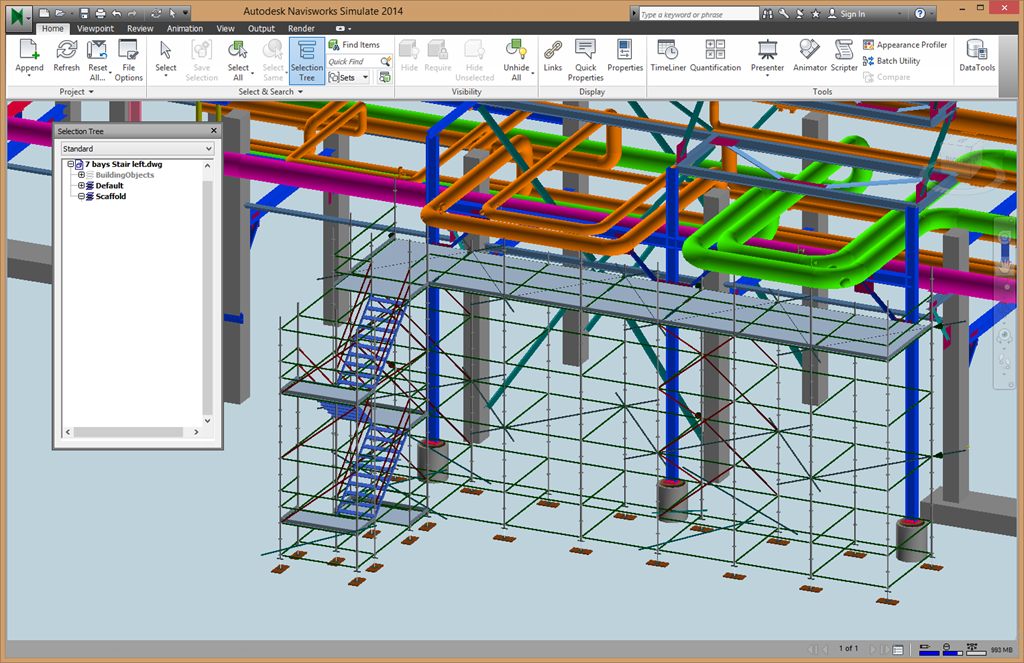
If your teams coordinate models in Autodesk Navisworks, you can integrate your Avontus Designer® scaffold designs into the master project model to validate access, detect collisions, and align erection and dismantle sequencing earlier. By using Avontus Designer as your scaffold-specific design engine and Navisworks as your coordination hub, you can reduce redesign, improve visualization, and keep the plan buildable.
Autodesk Navisworks is widely used to visualize, coordinate, and manage the construction and maintenance of complex facilities—from small chemical plants to large LNG projects. Scaffolds designed in Avontus Designer can be inserted into Navisworks, where they can be moved, resized, and reviewed in context with other building elements. With Navisworks Simulate and Manage, you can seamlessly integrate your scaffold designs into full-scale BIM (Building Information Modeling) environments.
Stay ahead of competitors using Avontus.
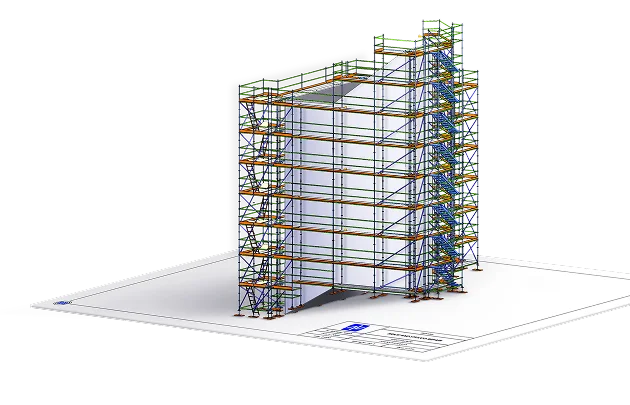
Autodesk Navisworks aggregates models from multiple disciplines into a single environment. This enables teams to review design intent, visualize constraints, and make data-driven decisions—especially in congested industrial environments where space is at a premium.
In day-to-day scaffold planning, the most critical Navisworks features include:
A simple workflow looks like this:
1. Design the scaffold in Avontus Designer (scaffold-first modeling)
Use Avontus Designer to build accurate scaffold models intended for real-world use. Scaffolding-specific platforms are often the most practical option for consistency, speed, and clarity. Once the design is complete, export your design as an i-model or DWG to import into the Navisworks coordination environment.
CAD Workflows: If your team currently relies on AutoCAD, see how Avontus Designer cuts drawing and counting time by up to 90%.
2. Visualize and review in Navisworks Once the scaffold design is in Navisworks, teams can review it against other building elements, confirm access and working clearances, and detect collisions early. Because the scaffold was created in Avontus Designer for real-world use, the visualization in Navisworks provides a high-fidelity look at how the temporary works will interact with the permanent structure.
3. Align sequencing with TimeLiner When the job requires clear sequencing, Navisworks’ TimeLiner can link model elements to schedule logic so teams can visualize erection and dismantle timing. This is especially useful when scaffold configurations change between project phases, access requirements change, or multiple trades compete for the same space.
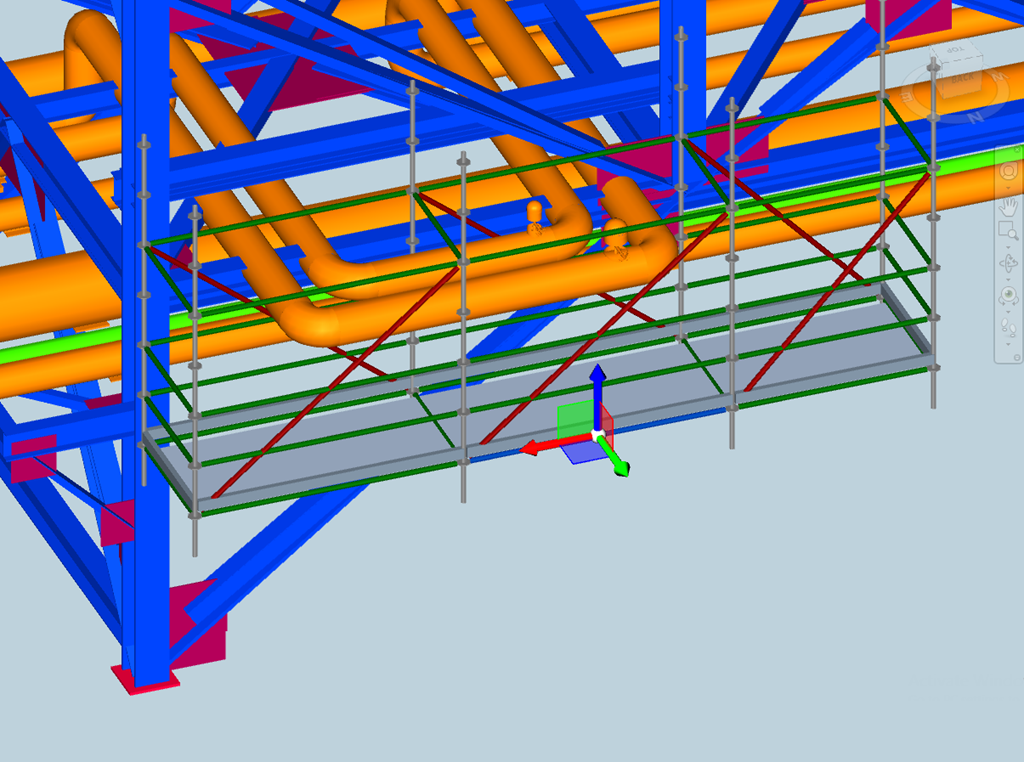
The display of individual scaffolds can be toggled on/off and tied to specific dates using Navisworks’ TimeLiner 4D Simulation. This animates the project lifecycle, allowing safety managers to spot potential hazards months before a boot hits the ground.
Research on BIM safety planning shows that including temporary structures in your work sequences helps teams identify hazards earlier and improves overall site safety.
In scaffold planning, the biggest design challenges usually aren’t “can we draw it?” They are:
Combining Autodesk Navisworks with Avontus Designer helps overcome these design challenges by improving early project review and enhancing visualization capabilities:
“Our continued investment and vision into the BIM space shines with Navisworks. Our customer base can expect to see further integration with BIM visualization software from Bentley Systems and Intergraph,” says Brian Webb, CEO and Founder of Avontus.
Ready to streamline your coordination? Contact us today to learn more about how you can stay on the cutting edge of scaffold design and planning.
The most efficient way is to export your completed scaffold design as an i-model or a DWG file. Once exported, you can simply “Append” the file within the Navisworks environment to see your scaffolding alongside the rest of your project’s structural and MEP models.
Yes. By bringing your Avontus Designer models into Navisworks Manage, you can use the Clash Detective tool to identify interferences between temporary scaffolding and permanent structures. This helps prevent costly field rework and ensures that access points are clear before equipment arrives on site.
Absolutely. Using the TimeLiner tool in Navisworks, you can link your scaffold models to your project schedule. This allows you to visualize exactly when scaffolds will be erected and dismantled, helping to coordinate space between different trades.
The NASC Skills Gap Report 2026 has put a number on something every scaffold business owner in the UK already… Read More

When speed becomes a service-level promise, not just an internal goal, it changes how clients choose you. Here’s what it… Read More

Is AutoCAD the best computer-aid design application for scaffold businesses? Find out what Avontus Designer can do for you in… Read More